
Set up your Grandstream GWN7062E
Use this guide for the configured RileyNet Wi-Fi 6 router once Riley has confirmed the activation date and ONT port.
Gather the equipment
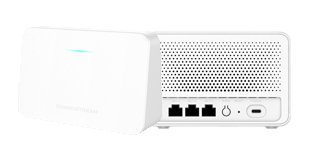
You need the router, its supplied USB-C power adapter, an Ethernet cable, and the connection instructions from Riley. The ONT has its own power supply. If its power lead is missing, contact Riley before proceeding.
Connect the fibre box to the router
- Find the Ethernet socket on the ONT named in your connection instructions. Another socket may belong to an existing service.
- Plug one end of a Cat 5e or better Ethernet cable into that ONT socket. Plug the other end into the router port specified by Riley. The GWN7062E supports automatic uplink detection in its default setup.
- Connect the supplied power adapter and let the router finish starting. Leave it powered during startup or an update.
Join Wi-Fi
On your phone or laptop, open Wi-Fi settings and select the network name Riley supplied. Enter its Wi-Fi password. If Riley confirmed the factory Wi-Fi details are in use, use the device’s Wi-Fi label or QR code. The Wi-Fi password and the router admin password have different jobs.
Check you’re online
Temporarily turn off mobile data on your phone, then open a fresh web page. Turn mobile data back on afterwards. If Wi-Fi connects but the page won’t load, try a computer connected to a remaining LAN port. Note whether wired access works before contacting Riley.
Keep the configured settings in place. A factory reset can erase them. For the hardware layout, see the manufacturer’s installation guide.